Auto-Allow Mac setup: Open Anyway and Accessibility
Setup has two separate steps: macOS may ask you to approve the first launch of the unnotarized preview, and Auto-Allow needs Accessibility access to interact with approval buttons. Use the official download and grant access only if you trust the app.
1. Put the app in Applications
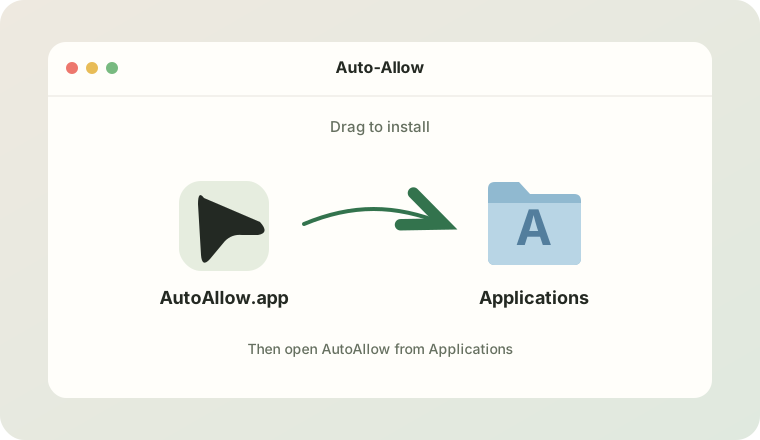
Open the downloaded DMG and drag AutoAllow.app into Applications. Launch the copy in Applications, rather than running a second copy from the mounted DMG.
2. Allow the first launch if macOS blocks it
The current preview is not Apple-notarized. If macOS blocks it after you try opening it, open System Settings, choose Privacy & Security, and look for the message about AutoAllow. If macOS offers Open Anyway, choose it and confirm the launch. You may need to authenticate.
Open Anyway does not certify that an app is safe. Do not disable Gatekeeper or use a terminal command to bypass an unexplained warning. If macOS reports malware or the expected option is missing, stop and contact support.
3. Enable Accessibility
In System Settings → Privacy & Security → Accessibility, add the copy at /Applications/AutoAllow.app and enable it. Return to Auto-Allow and check its access status.
4. Test before enabling clicks
Choose the AI app you want to watch, bring it to the front, and use Test only to preview an approval. Test only does not click. For a harmless workflow, switch it off and confirm a real approval clears. Pause with ⌘⇧A.
Do I need to grant permission after every restart?
Normally, Accessibility permission persists for the installed app. Rebuilding, replacing or changing its code signature can invalidate the existing grant. An enabled old entry may not authorize a newly built copy.
Permission is enabled, but the app says access is missing
- Confirm you are opening AutoAllow.app from Applications.
- In Accessibility settings, remove the stale AutoAllow entry.
- Add the exact installed app again and enable it.
- Reopen Auto-Allow and check the access status.
If your Mac is managed by an employer, an administrator may control these settings. Auto-Allow cannot grant its own system permission.
Can I use Windows or an Intel Mac?
The current download is an Apple Silicon Mac preview for macOS 13 or later. This guide does not describe a Windows release or an Intel build.
Full illustrated setup guide · Apple: Accessibility access · Apple: opening apps safely